Recording a NuCorder session
Record your rehearsal so you can listen back to a section, practise between sessions, or share a take with your band. Local recording is included with both the Free and Premium plans. The file is saved on the computer running NucorderDesktop.
This guide covers the Beta version of NucorderDesktop, currently offered by default during onboarding and on the download page.
Start and stop a recording
Join your room with NucorderDesktop connected, then check that you can hear the musicians you want to record.
In the room, click Record to start recording locally.
Play the section you want to keep.
Click Stop recording when you are finished.
Wait for the recording-complete notification before opening the file or closing NucorderDesktop. The file uses the room's name.
Before an important rehearsal, check that your computer has enough free space and that you can hear your bandmates. Make a short test recording and listen back to it.
What is in the recording?
The recording captures your personal mix of the room. Each musician can make a separate local recording, and your mix settings do not affect the other musicians' recordings. The musicians' levels and the mute or solo controls on your mixer affect what is in your file. If you change these settings while recording, those changes are captured too.
Only real-time audio captured by NucorderDesktop is recorded. Your own instrument or microphone is included if it comes back through NuCorder. If you hear it only through direct monitoring on your audio interface, it will not be in the file. Audio from a webcam microphone is not included either.
Effects in the received audio and the metronome are recorded when they are audible in your mix. To leave the metronome out of your recording, mute its channel in your personal mix. Your bandmates can still hear it.
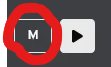
The Master control only changes the output volume to your headphones or speakers; it does not change the recording level.
The recording is a final mix. Multitrack recording is not currently available, so you cannot adjust the instruments separately afterwards. If you would like this feature, contact support.
Find and share your recording
The recordings are saved on your computer under Documents → NuCorder → Recordings, in folders labelled with the date and room name. The audio files are in WAV format. Very long recordings may be split across several files to stay within file-size limits.
To open the folder, use Open recordings folder from the NucorderDesktop menu. On macOS, you can also find it under File.
You can open a WAV file in an audio player or share it with the other musicians using your usual file-sharing service. The file is stored locally and is not automatically shared through NuCorder.
Is there a recording time limit?
NuCorder does not impose a time limit on local recording itself. You do need enough free space on your computer to save the file.
The room's time limit is separate. A private room hosted on the Free plan lasts up to 30 minutes. Open rooms and private rooms hosted by a Premium user have no time limit. See the NuCorder plans for details.
Need help?
If finalization fails, check that your computer has enough free space. If Retry finalization appears, use it to try again. Keep the recording folder until the issue is resolved.
If you cannot hear the other musicians properly, check your setup before recording. The Getting ready for your first NuCorder session guide walks you through the first checks.
If you have a problem with recording, contact us and include your account and any error message.
Still need a hand?
Our team is happy to help.