Getting Ready for Your First NuCorder Session
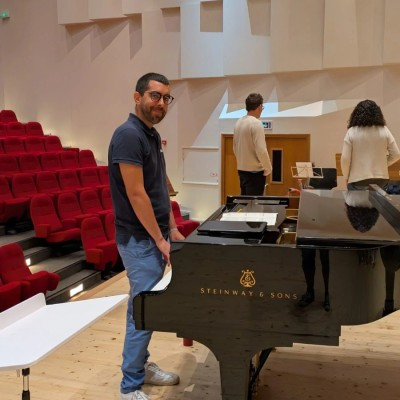
Want to try NuCorder with another musician? Follow this guide to set up your equipment, create a session, and check that you can hear each other before you start playing.
The free offer lets you test your setup in a private session for up to 30 minutes. If you need more time to finish your test, you can start another session.
Before you start
NuCorder is available for macOS and Windows. A Linux version is also available on a best-effort basis, but our test machine is too old for us to test it properly.
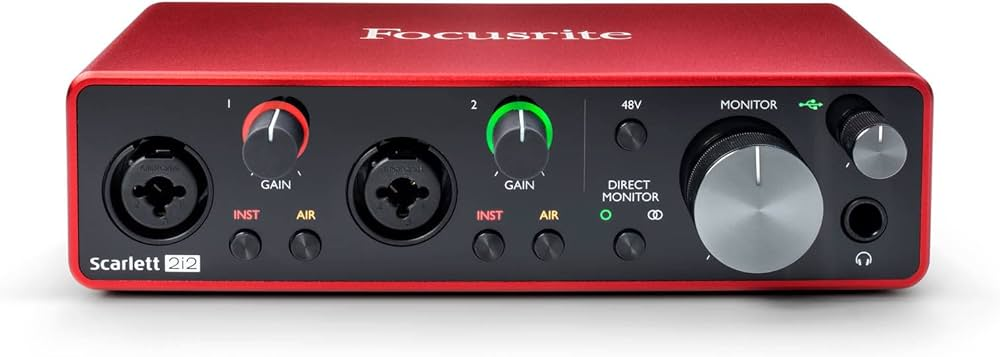
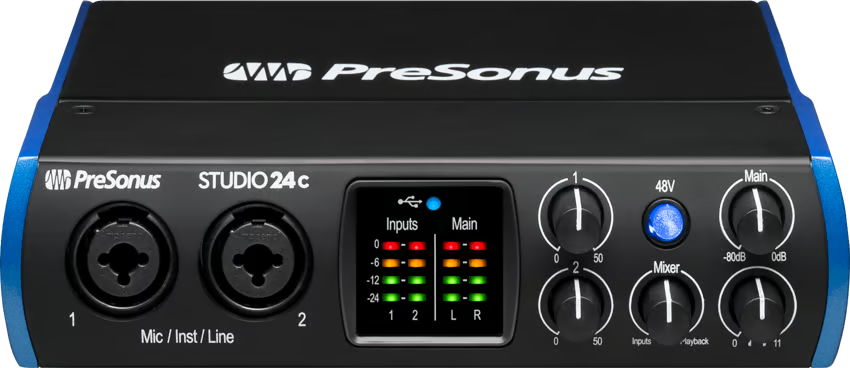
An audio interface is strongly recommended to reduce latency. If you don’t already have one, we recommend either of these two models, which we test regularly:
Focusrite Scarlett 2i2, a 2-in/2-out USB audio interface
PreSonus Studio 24c, a 2-in/2-out USB audio interface
Most audio interfaces should work. If yours doesn’t, please contact us at hello@nucorder.fr.
For the best experience, we also recommend wired headphones. Avoid Bluetooth headphones: they add latency and can make it more likely that you’ll hear yourself with a delay. In a studio setup, you can also route NuCorder’s audio output to a speaker. That’s what we did in this demonstration between Paris and London:
To avoid waiting during your test, ask your partner to set up their account and equipment too.
1. Create your account and verify your email address
Go to app.nucorder.fr/signup to create your account.
You’ll receive a code in your inbox. Enter it to verify your email address.
2. Download and connect NuCorderDesktop
Go to app.nucorder.fr/download and download the version for your operating system.
After installing it, launch NucorderDesktop. A login page will open on the NuCorder website to link the software to your account. The page will tell you whether the connection was successful.
When the “NucorderDesktop” indicator in the top-right corner of the website turns green, the software is connected and ready to use.
If you run into a problem, visit the help center or email our support team at hello@nucorder.fr.
3. Create a session and invite your partner
When your partner is ready, open the sessions page and click “Create a new session.”
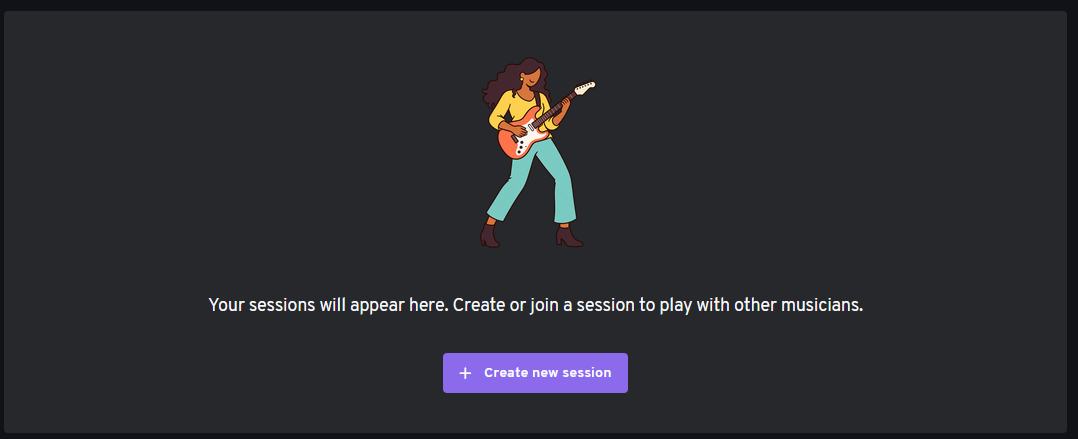
Choose “Start now,” enter a name for the session, then click “Create and join.” You’ll enter the room and can invite your partner from there.
For more information about creating and scheduling sessions, see our article “Creating a session.”
4. Check that your audio is working
Connect your instrument or microphone to your audio interface and play a few notes. In the mixing console, the meters for the inputs you’re using should move.
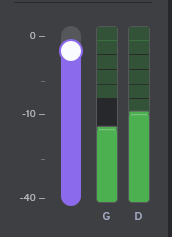
Once your partner has joined the room, both of you should play at the same time. You should see the meters moving for each of you, and hear each other playing.
Wired headphones are recommended to prevent sound from your speakers being picked up by a microphone, which can cause feedback.
You’re ready to play
Once the meters are moving and you can hear your partner, you can start rehearsing. Your first private session can last up to 30 minutes on the free offer.
Still need a hand?
Our team is happy to help.